Booked
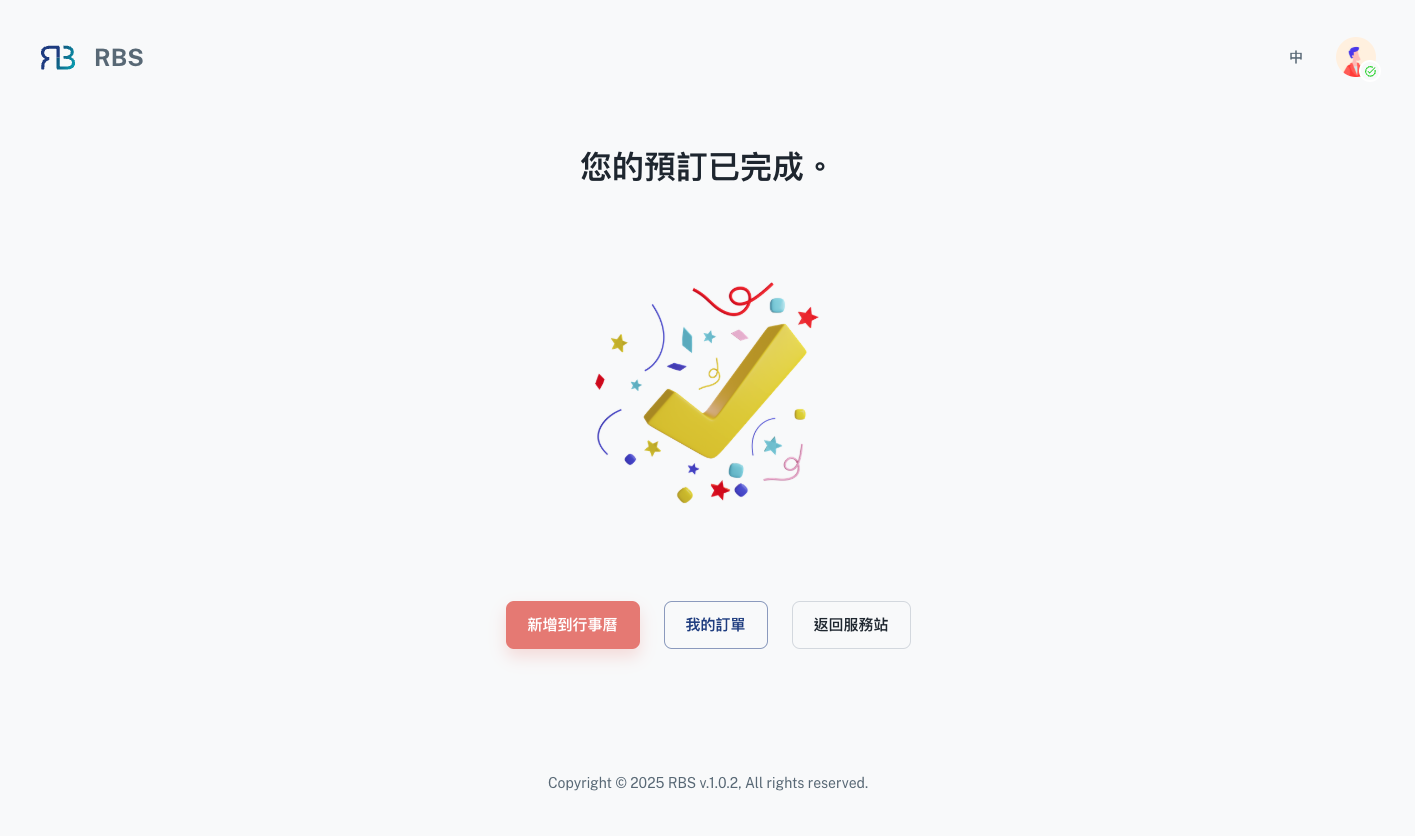
After successfully completing your booking, you'll be directed to the 'Booked Page,' where you'll receive confirmation of your reservation. Here, you have a few options:
- ✅ Success or ❌ Failure Confirmation: The 'Booked Page' will clearly indicate whether your booking was successful or if there was a failure. Success means your reservation has been confirmed and is ready for activate.
Options for Site Members:
If you're a site member, you'll see the following three buttons on the window:
-
Add to Calendar: By clicking
Add to Calendar, you can easily integrate the booking into your preferred calendar application (e.g., Google Calendar, iOS Calendar, or Microsoft Calendar). This feature helps you stay organized and ensures you don't overlook any crucial reservation details. -
My Orders
Clicking "My Orders" will guide you to the dashboard (specifically the My Orders section). Here, you can view and manage all your bookings, ensuring you have easy access to your reservation history and status.
-
Back To Site: If you want to continue exploring the site or view more resources, you can return to the site's main page by clicking
Back To Site.
Options for Guests:
If you've booked as a guest, you won't see the Activate Process button on the window. Instead, please check your email for a message containing a link to activate the booking process. This link will guide you through any necessary steps to finalize your guest booking.