Customer Groups
https://rbs.ces.myfiinet.com/rbs-admin/customer-management/groups
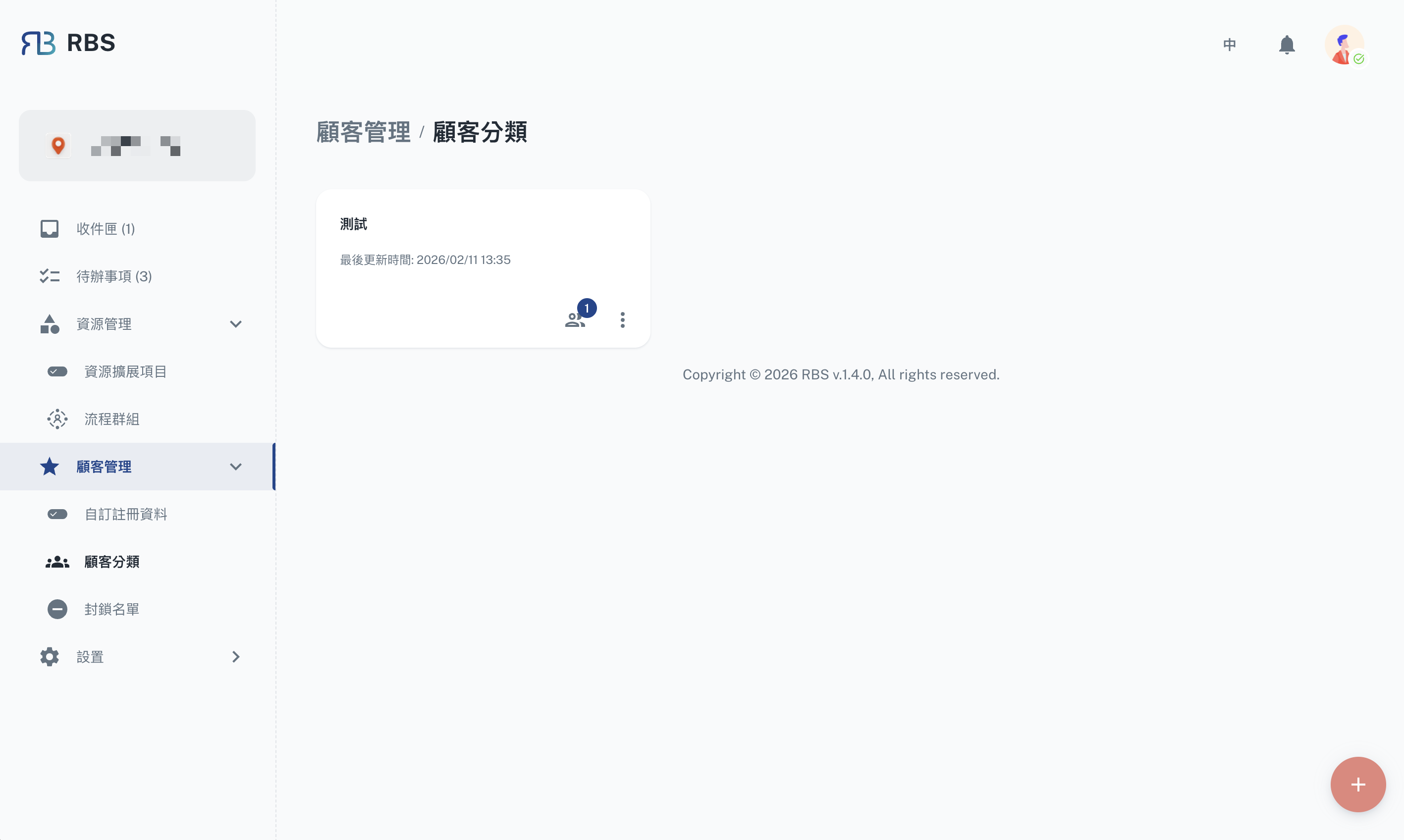
Overview
The Customer Groups page allows administrators to organize customers into groups for streamlined management and access control. Groups can be used to categorize customers by department, membership level, or any other criteria relevant to the organization.
Key Features
- ➕ Create Groups: Create new customer groups with a name and description using the floating action button.
- 🖊️ Edit Groups: Modify existing group details such as name and description.
- ❌ Delete Groups: Remove groups that are no longer needed.
- 👥 Manage Members: View and manage the members within each group.
Group Member Management
Clicking on Manage Members for a group navigates to the group detail page, where administrators can:
- View Members: See a table of all customers in the group with their name, email, and phone number.
- Add Members: Add existing customers to the group using the add member dialog.
- Remove Members: Remove customers from the group.
- Search & Filter: Quickly locate specific members using the search and filter functionality.
How to Use
- Navigate to Customer Management → Customer Groups in the sidebar.
- Click the + button to create a new group.
- Fill in the group name and description, then confirm.
- Click Manage Members on a group card to add or remove members.
- Use the Edit button on a group card to update group details.