Reservations
https://rbs.ces.myfiinet.com/rbs-admin/resource-management
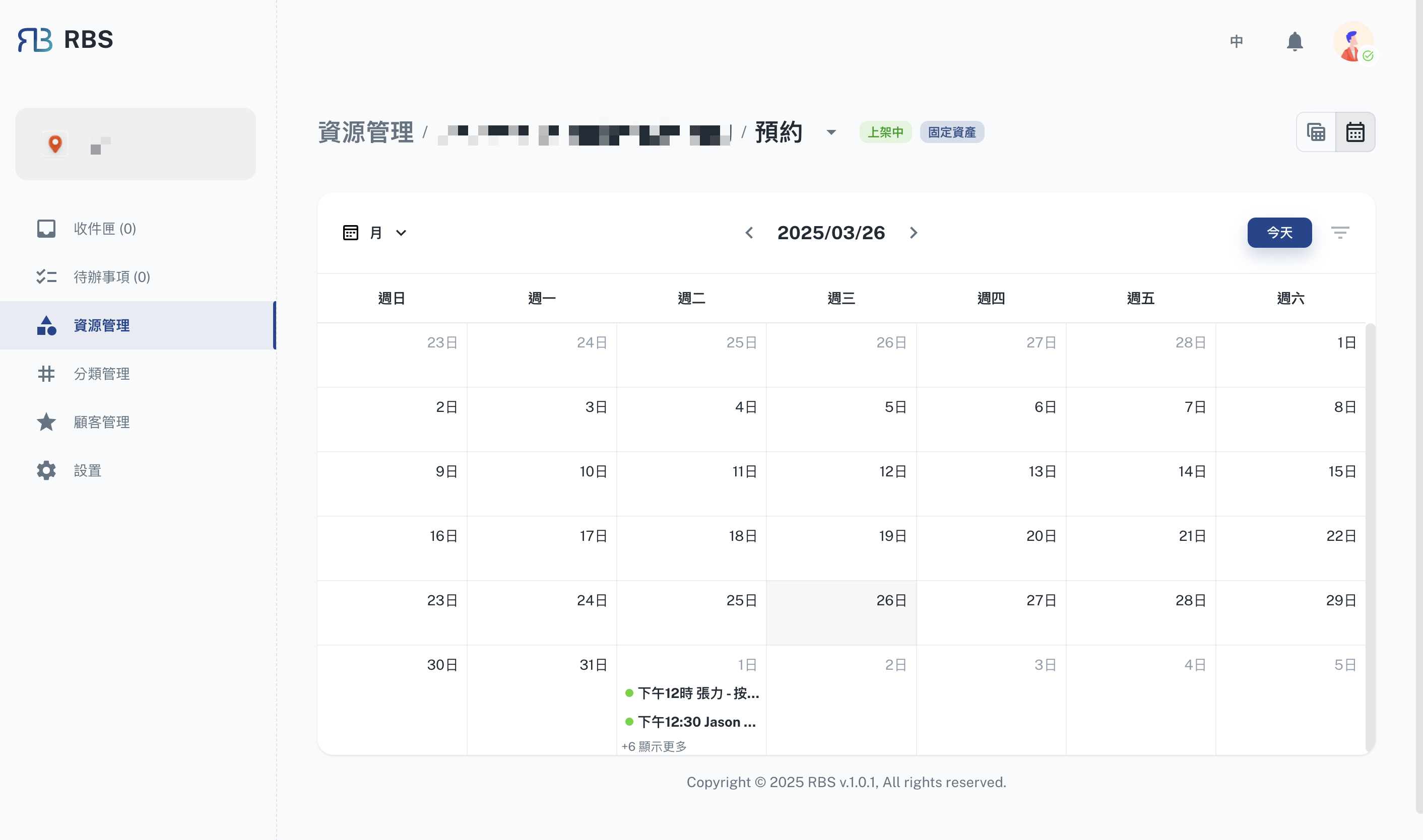
The Reservations feature allows administrators to manage and track resource bookings efficiently. It provides two views, Calendar and Table, to visualize and manage reservations effectively.
Key Features
- 📅 Calendar View: Displays reservations in a clear, organized format, making it easy to identify available slots and avoid scheduling conflicts. The Calendar View supports multiple sub-views:
- Month View: Provides a high-level overview of reservations for the entire month.
- Week View: Displays reservations for a specific week, offering more detailed scheduling.
- Day View: Focuses on reservations for a single day, ideal for precise management.
- List View: Shows reservations in a chronological list format for quick reference.
- 📋 Table View: Lists reservations in a tabular format, allowing for quick sorting, filtering, and detailed management. Administrators can also export the reservation list as an Excel file for reporting or offline use.
- ⚡ Real-Time Updates: Reflects changes instantly to ensure accurate scheduling.
- 🔍 Reservation Details: View and manage specific booking information.
How to Use
- Navigate to the Resource Management section in the sidebar.
- Select the Reservations tab to access the available views.
- Switch between the Calendar and Table views to manage reservations as needed.
- In the Calendar View, toggle between the Month, Week, Day, and List sub-views for different levels of detail.
- In the Table View, use the export option to download the reservation list as an Excel file.
- Click on a date or row to view or add reservations for that day.
- Use the filters or search functionality to locate specific bookings.
This tool is designed to streamline the reservation process and improve resource utilization.